> ## Documentation Index
> Fetch the complete documentation index at: https://elementary-ele-2784-fix-alerts-configuration-links-docs.mintlify.site/llms.txt
> Use this file to discover all available pages before exploring further.
# Generate observability report
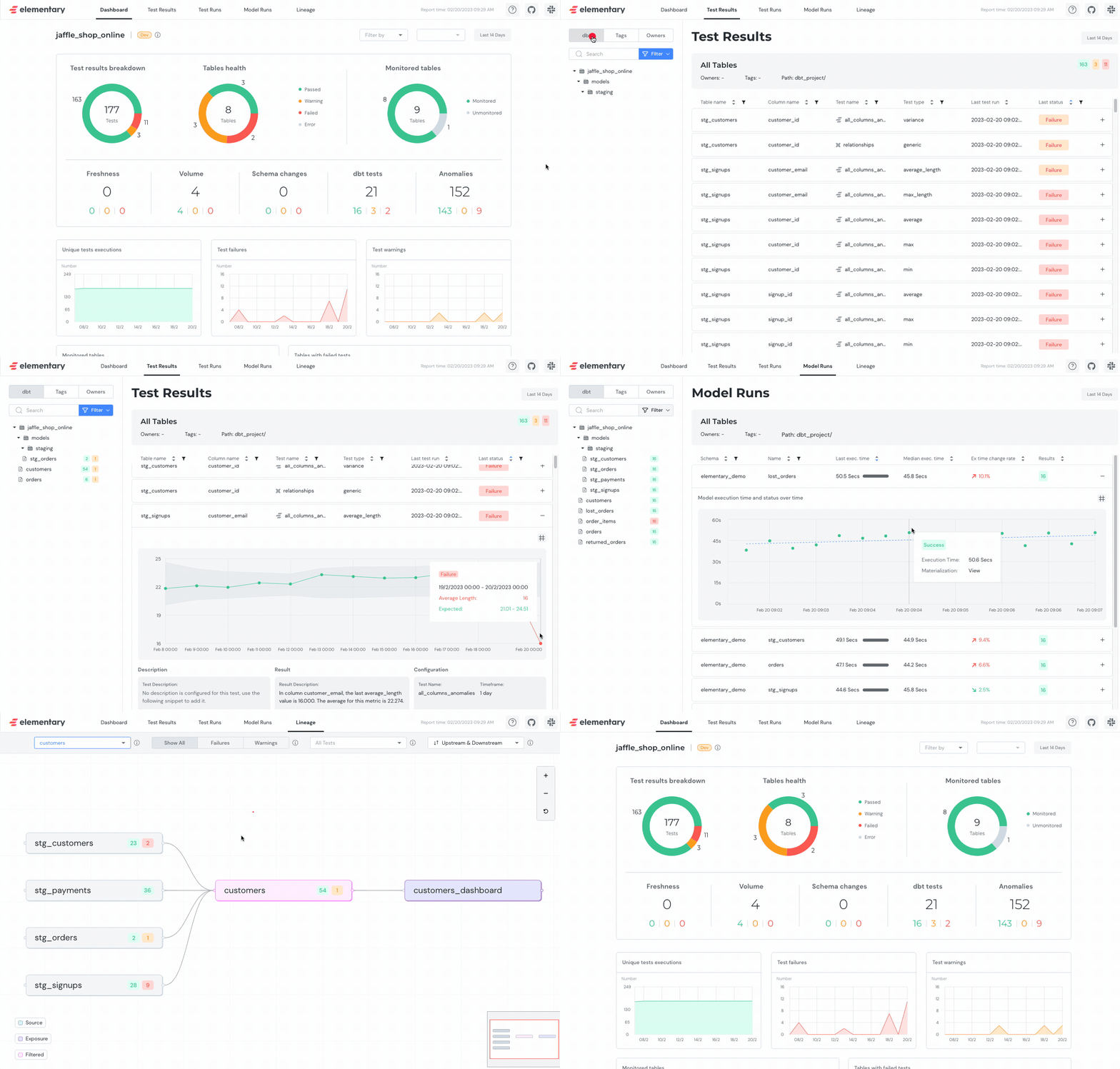
Elementary [data observability report](/features/data-observability-dashboard) can be used for visualization and exploration of data from the dbt-package tables. That includes dbt test results, Elementary anomaly detection results, dbt artifacts, tests runs, etc.
 ## Before you start
Before you can start using the report, make sure to install the dbt package, configure a profile and install the CLI.
This is **required for the report to work.**
## Generate Tests Report UI
### Execute `edr report` in your terminal
After installing and configuring the CLI, execute the command:
```shell
edr report
```
The command will use the provided connection profile to access the data warehouse, read from the Elementary tables, and generate the report as an HTML file.
***
## Generating a report for single invocation
Elementary support filtering the report by invocation on generation.
The filtered report will only include data for the selected invocation (This applies only on the `Test Results` and `Lineage` screens).
There are 3 ways to filter the report by invocation:
* **Last invocation** - Filter by the last invocation (`dbt test` / `dbt build`) that ran.
* **Invocation time** - Filter by the closest invocation (`dbt test` / `dbt build`) to the provided time (the provided time should be in ISO format local time).
* **Invocation id** - Filter by the provided invocation (`dbt test` / `dbt build`) id.
Filters usage example:
```shell edr report invocation filters
edr report --select last_invocation
edr report --select "invocation_time:2022-12-25 10:10:35"
edr report --select invocation_id:XXXXXXXXXXXXX
```
***
## Before you start
Before you can start using the report, make sure to install the dbt package, configure a profile and install the CLI.
This is **required for the report to work.**
## Generate Tests Report UI
### Execute `edr report` in your terminal
After installing and configuring the CLI, execute the command:
```shell
edr report
```
The command will use the provided connection profile to access the data warehouse, read from the Elementary tables, and generate the report as an HTML file.
***
## Generating a report for single invocation
Elementary support filtering the report by invocation on generation.
The filtered report will only include data for the selected invocation (This applies only on the `Test Results` and `Lineage` screens).
There are 3 ways to filter the report by invocation:
* **Last invocation** - Filter by the last invocation (`dbt test` / `dbt build`) that ran.
* **Invocation time** - Filter by the closest invocation (`dbt test` / `dbt build`) to the provided time (the provided time should be in ISO format local time).
* **Invocation id** - Filter by the provided invocation (`dbt test` / `dbt build`) id.
Filters usage example:
```shell edr report invocation filters
edr report --select last_invocation
edr report --select "invocation_time:2022-12-25 10:10:35"
edr report --select invocation_id:XXXXXXXXXXXXX
```
***